

The Print Appointment Details feature allows your organization to generate a paper or PDF confirmation for a scheduled appointment. It facilitates information sharing with the patient and supports administrative or clinical needs while ensuring the accuracy of the displayed data.
It allows you to:
view all information related to an appointment.
print a complete confirmation, including appointment instructions, directly from the platform.
keep a paper or digital record for the patient.
This action is accessible directly from the Follow-up menu and the Appointments menu in order to reduce handling and ensure quick access to information.
Print appointment details from the Follow-up menu
To print the appointment details (confirmation):
1. Access the appointment
- From the Follow-up menu, locate the relevant appointment and go to the Actions column.
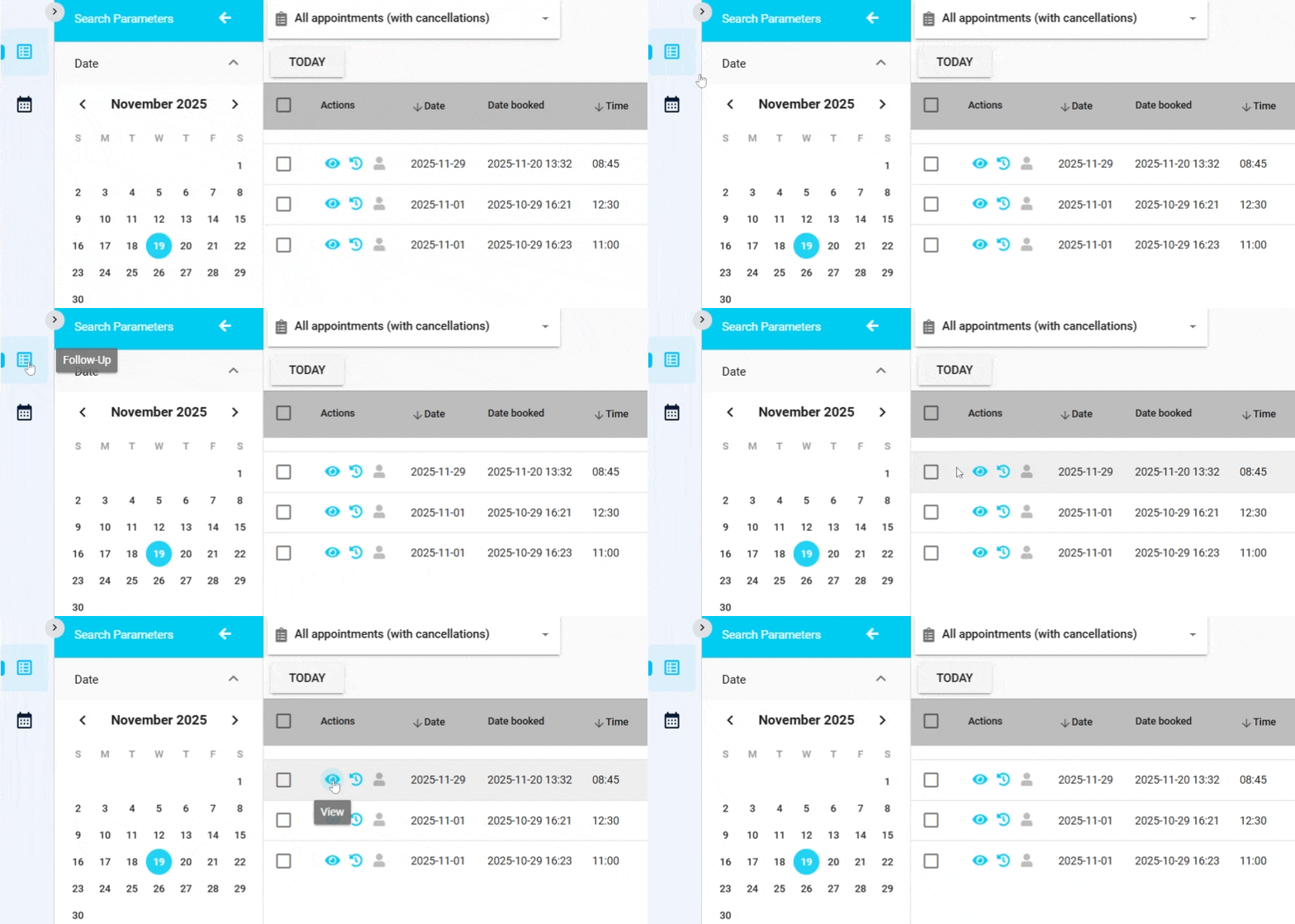
2. View appointment details
- Click the Eye icon to display all appointment details, including patient information, date, time, service, and location.
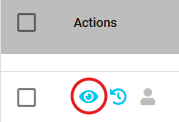
3. Print the appointment confirmation
- Once the details are displayed, click the Printer icon.
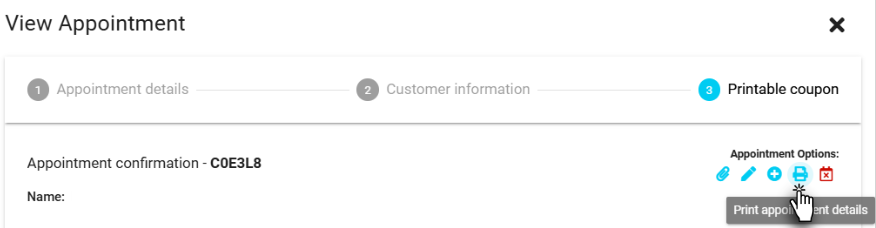
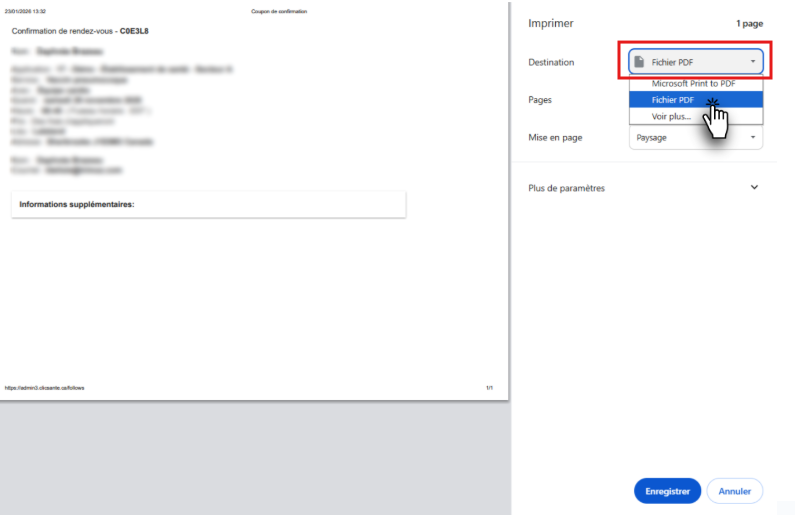
- Your browser’s print window will automatically open, allowing you to:
- print the appointment confirmation slip; or
- save it as a PDF, depending on your browser settings.
| By phone | Solutions home page | Get help and open a ticket |
| 450-977-2672 poste 2 | Solutions Clic Santé | Open a ticket |

Trimoz Technologies - All rights reserved