

This feature allows you to change the padlock status of your time slots (opening them to the public or reserving them internally) across multiple days, weeks, or months in a single action. Depending on your goals, this action can be applied globally or targeted precisely using your filters.
TABLE OF CONTENTS
Bulk schedule locking and unlocking
To adjust access to your time slots in bulk, follow these steps:
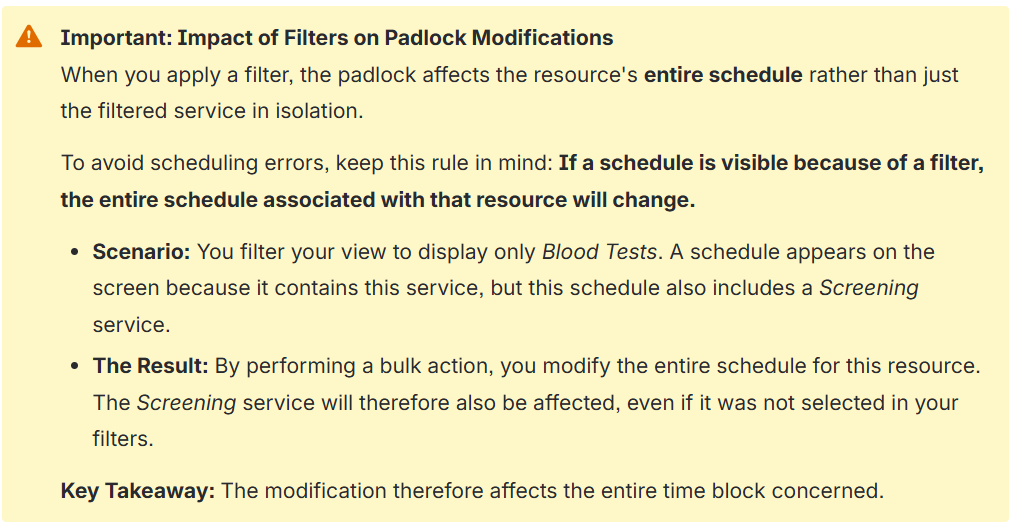
1. Adjust your filters (optional)
- If you want to target a specific resource or service, use your side panel to isolate these elements on the screen (e.g., select only the “Nursing” team resource). If you want to modify all your days, make sure you have no active filters.
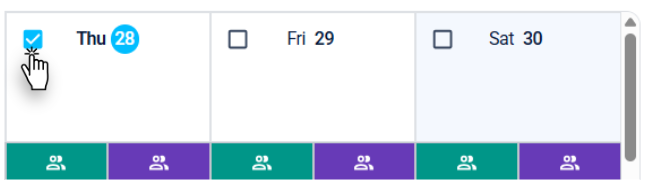
2. Check the target days
- In your calendar, select the days you want to lock or unlock, regardless of whether they are empty, contain schedules, or already have appointments.
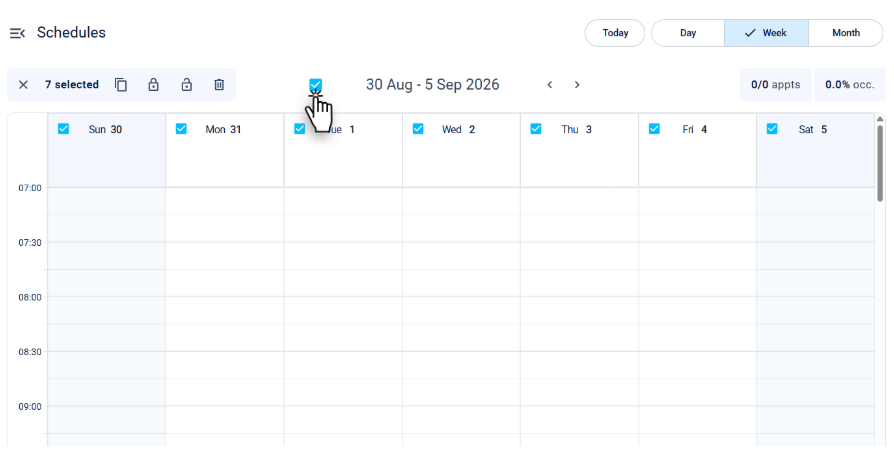
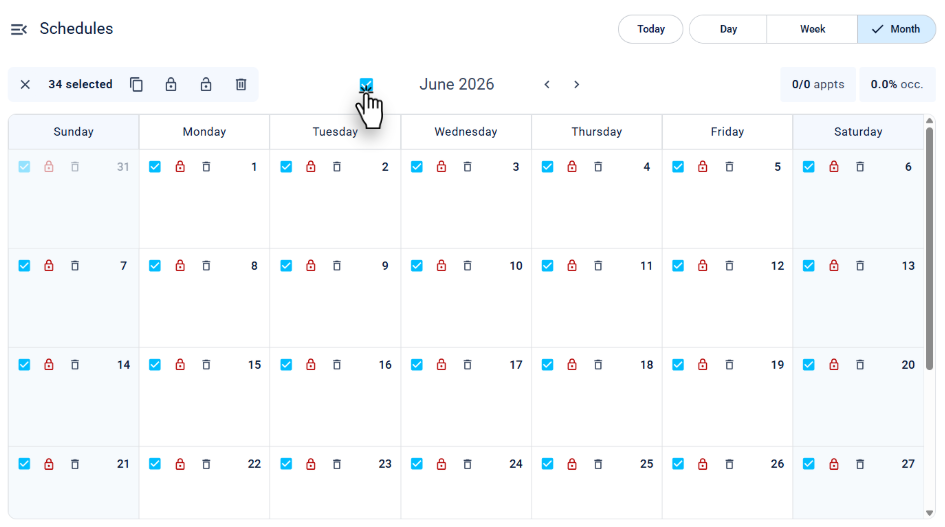
- To make selecting days easier, it is recommended to choose a full week or month in the corresponding view.

3. Apply the bulk action
Once one or more days are selected, an action bar appears. This bar displays the number of selected days and offers the option to deselect everything with a single click using the X icon.
- Click on the desired padlock status in your action bar:
- The unlocked padlock: Opens the selected slots to users on the public portal.
- The locked padlock: Reserves the slots exclusively for internal use. The block becomes invisible to the public.
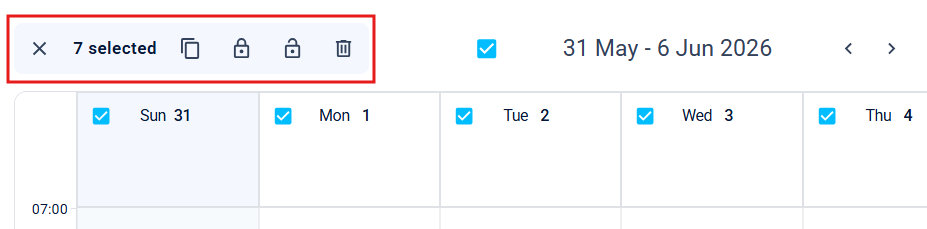
- Confirm the bulk locking or unlocking for these days. The remaining availability across all your selected days will be locked or unlocked according to your choice.

Practical Cases: Everyday Use Cases
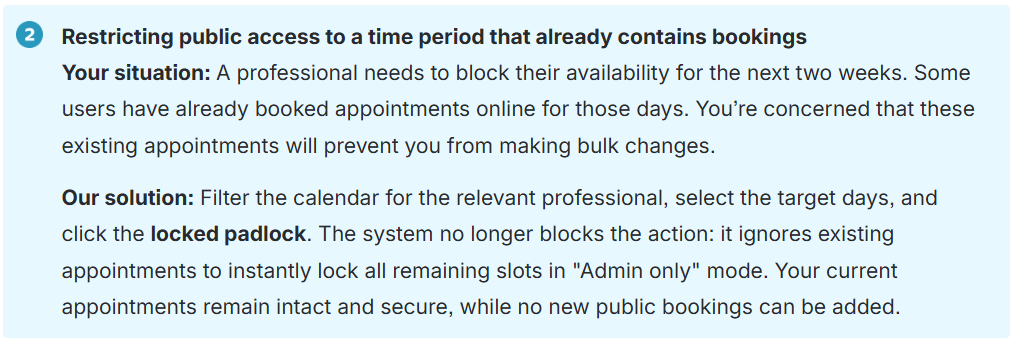
Here is how this feature allows you to respond effectively: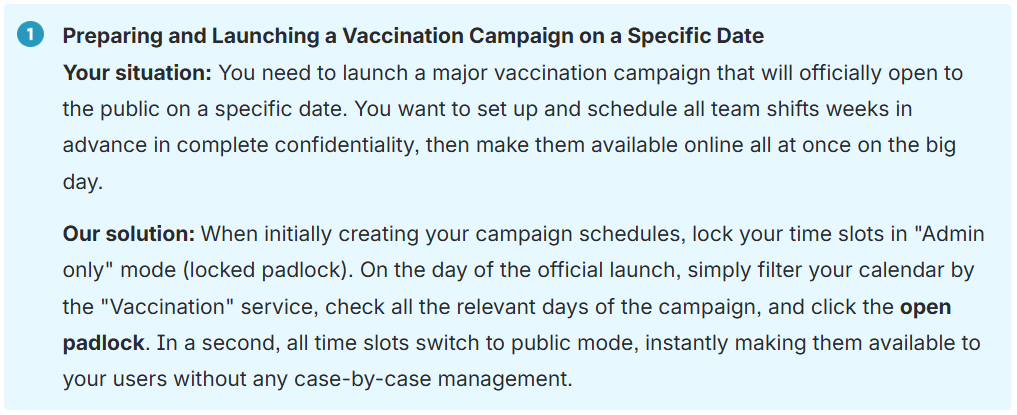
Related article(s)
Bulk locking and unlocking time slots
| By phone | Solutions home page | Get help and open a ticket |
| 450-977-2672 poste 2 | Solutions Clic Santé | Open a ticket |

Trimoz Technologies - All rights reserved