

This feature lets you quickly adjust your availability by clearing multiple time slots at once. By applying filters, you can precisely target the periods to be removed while protecting existing bookings and the rest of your calendar.
TABLE OF CONTENTS
Bulk deletion of your schedules
To delete your time slots in bulk, follow these steps:
1. Adjust your filters (optional)
- If you want to delete the schedules for a single resource, use the sidebar to isolate those elements on the screen. If you want to completely delete the existing schedules for your days, do not apply any filters.
2. Check the target days
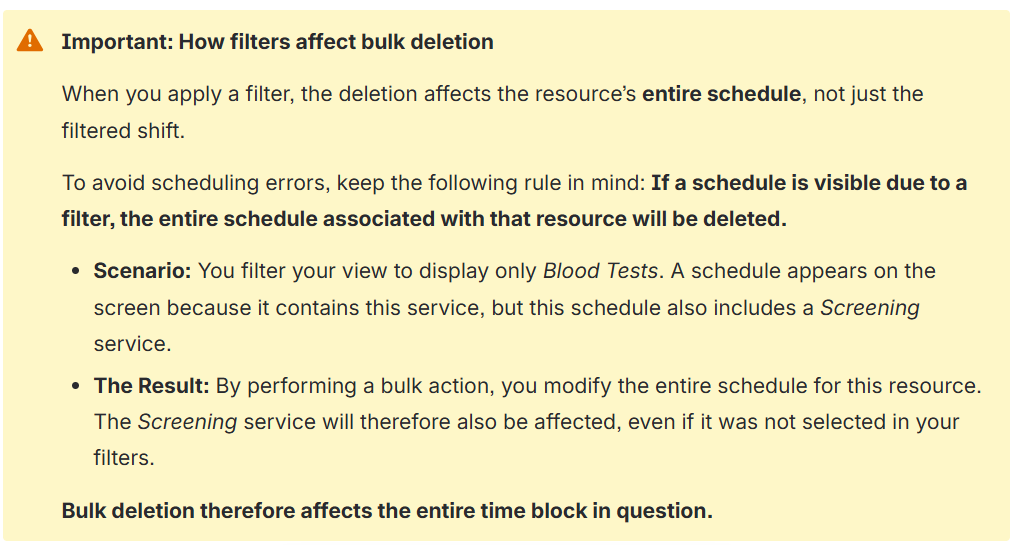
- In your calendar, select the days you want to delete, regardless of whether they are empty, contain schedules, or already have appointments.
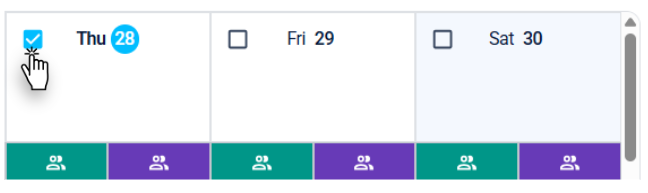
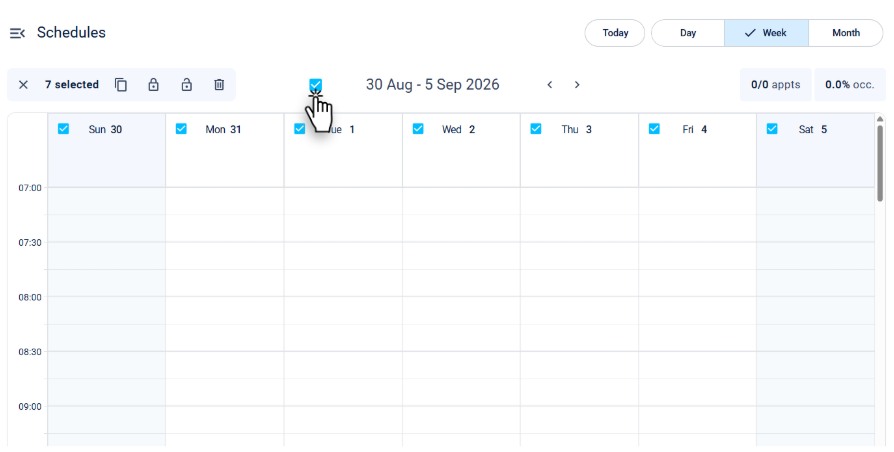
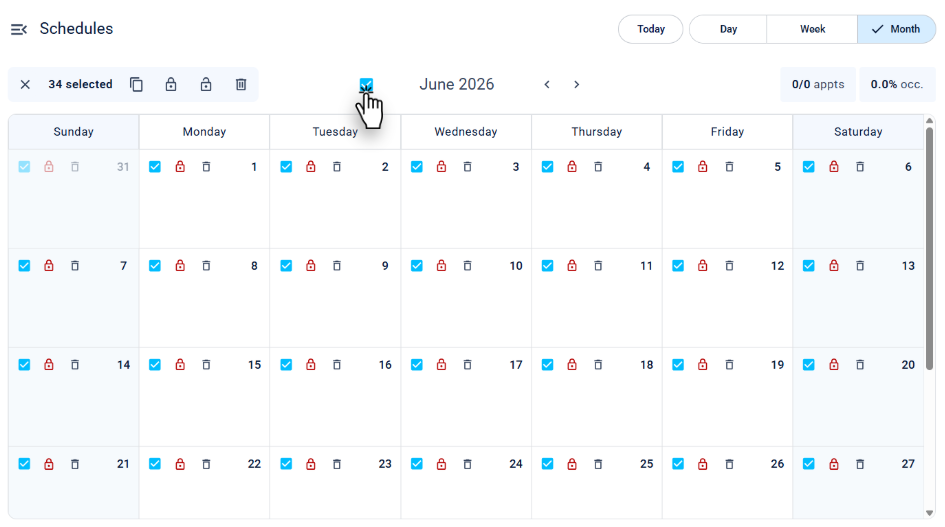
- To make selecting days easier, it is recommended to choose a full week or month in the corresponding view.

3. Apply the bulk action
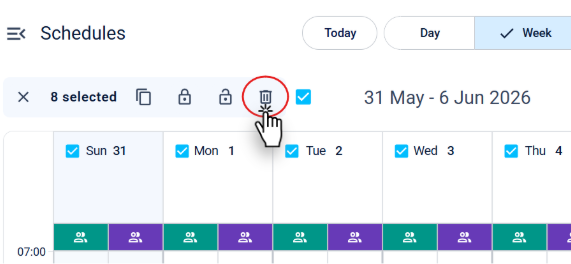
Once one or more days are selected, an action bar appears. This bar displays the number of selected days and offers the option to deselect everything with a single click using the X icon.
- Click the Delete button (trash can icon).
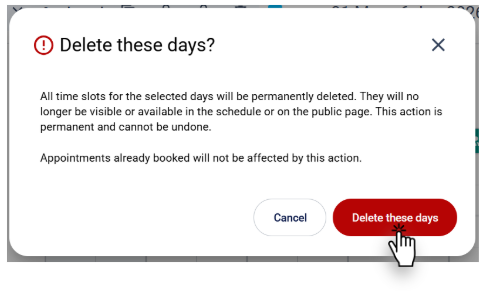
- Confirm the bulk deletion for these dates.

Practical Cases: Everyday Use Cases
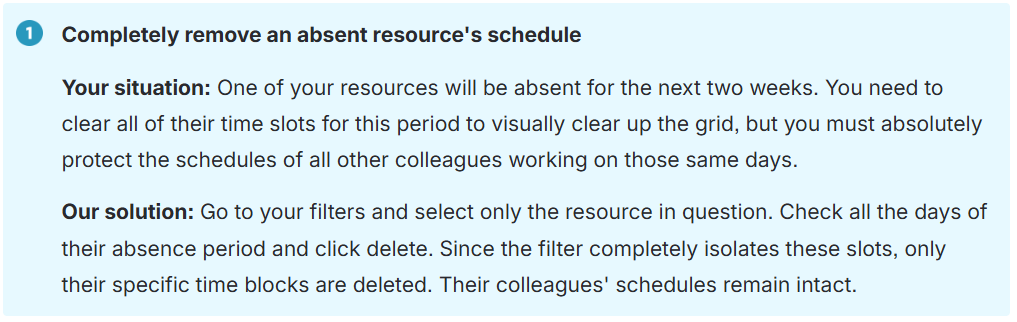
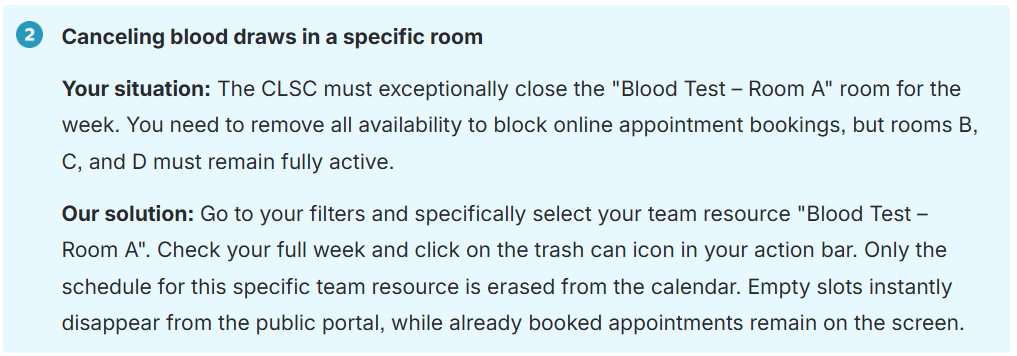
Here's how bulk deletion helps you reorganize your calendars when unexpected events arise:
Related article(s)
Delete a time slot
| By phone | Solutions home page | Get help and open a ticket |
| 450-977-2672 poste 2 | Solutions Clic Santé | Open a ticket |

Trimoz Technologies - All rights reserved