

Whether you want to clear an entire day with just a few clicks or remove a single time slot, the system adapts to your needs. You have two complementary methods for managing your time slots securely.
TABLE OF CONTENTS
- Delete a day (complete deletion)
- Delete a time slot (targeted deletion)
- Practical Cases: Everyday Use Cases
Delete a day (complete deletion)
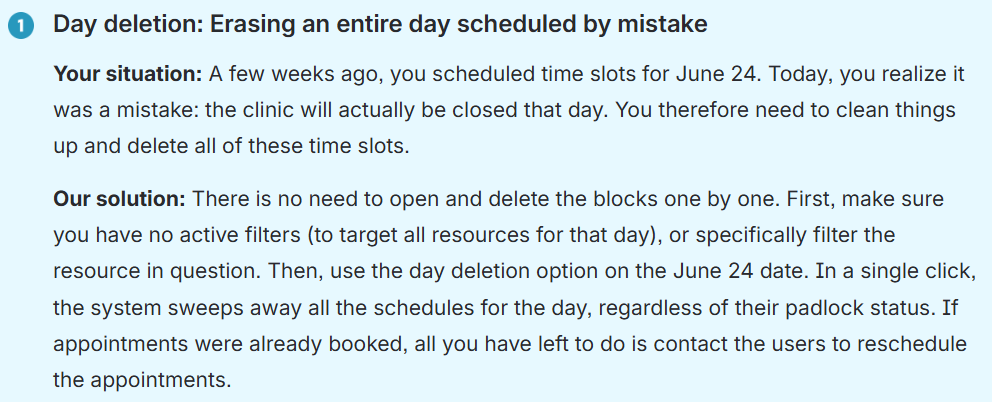
Deleting a day lets you quickly clear your calendar while applying filters to protect your schedule.
1. Adjust your filters (optional)
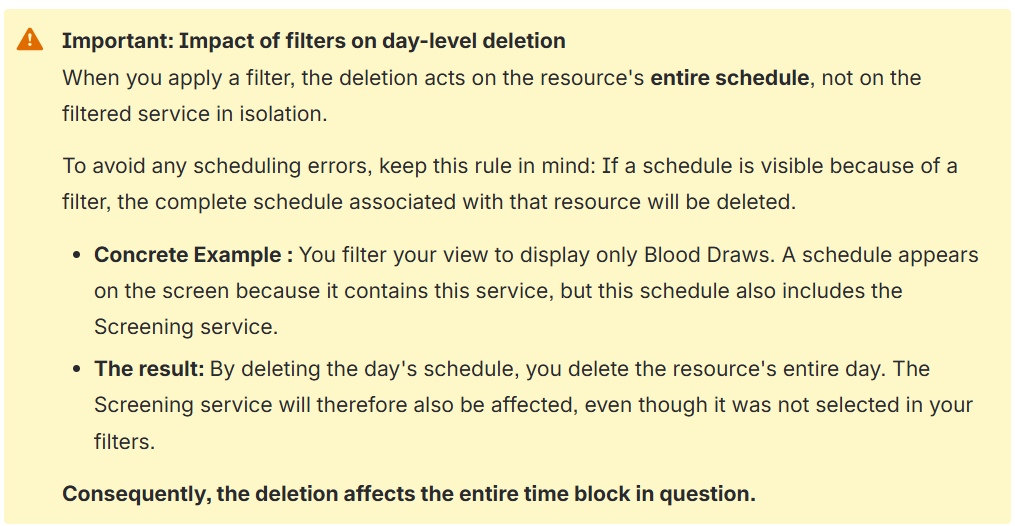
- If you want to delete a schedule for a single resource, use the sidebar to isolate those elements on the screen. If you want to completely delete the existing schedules for your day, do not apply any filters.
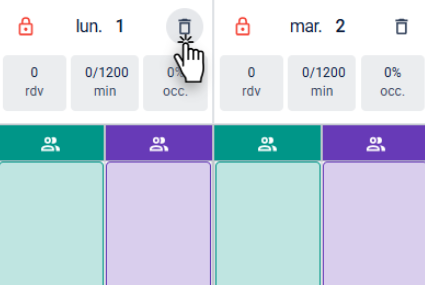
2. Delete your day's schedule
- Click the Delete button (trash can icon) above the desired day.
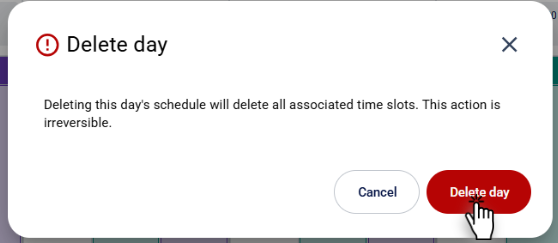
3. Confirm the deletion
- Confirm the deletion of the day by clicking "Delete day".
Delete a time slot (targeted deletion)
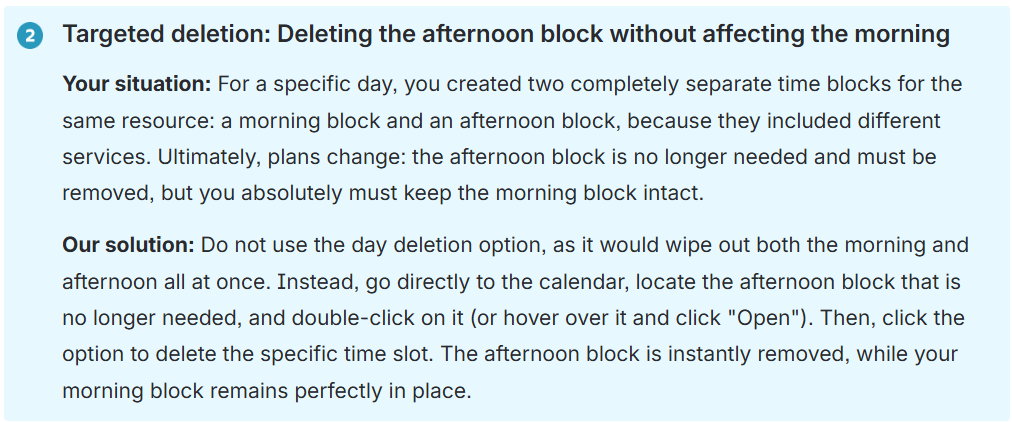
If your goal is not to clear an entire day, but rather to make a targeted change to a single time block, you can bypass deleting the whole day and act directly on the relevant slot.
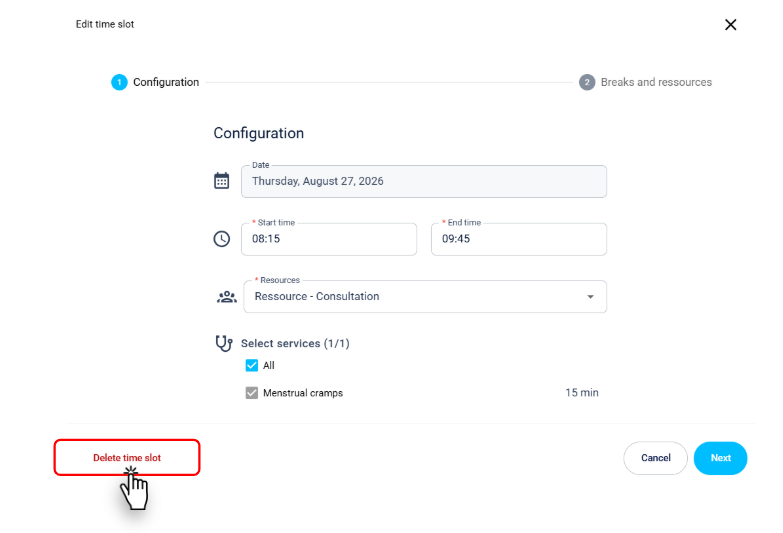
1. Delete a time slot
- Option A (double-click): Double-click directly on the time slot you want to remove to open its edit window. Then, click the "Delete time slot" button.
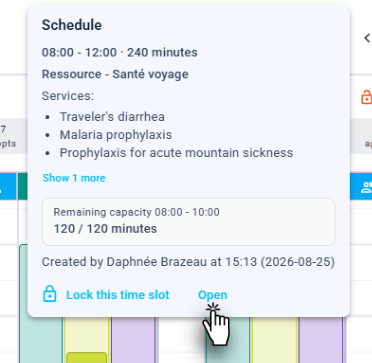
- Option B (Hover): Hover your mouse cursor over the time slot, click the "Open" button that appears, and then click the "Delete time slot" button.
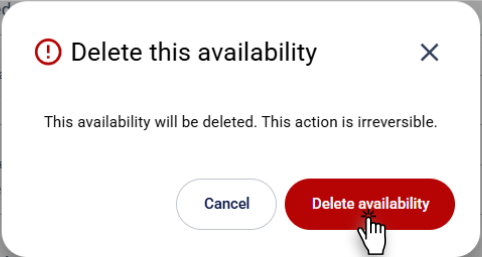
2. Confirm the deletion
- Confirm the deletion by clicking "Delete availability".
Practical Cases: Everyday Use Cases
Here is how to choose the right deletion method based on unexpected events that occur in your facility.
Related article(s)
Bulk delete time slots
Break, Resources and Time Segments
| By phone | Solutions home page | Get help and open a ticket |
| 450-977-2672 poste 2 | Solutions Clic Santé | Open a ticket |

Trimoz Technologies - All rights reserved