

The Edit the appointment feature allows your facility to easily update information for a scheduled or past appointment. It helps you correct incorrect information, adjust scheduling, or fill in missing details to provide accurate and reliable appointment tracking.
This action is accessible directly from the Follow-up and Appointments menus, limiting the number of steps and simplifying the process for healthcare professionals.
Edit the appointment
To modify a user's appointment, go to the Appointments menu in the administration interface, then follow the steps below.
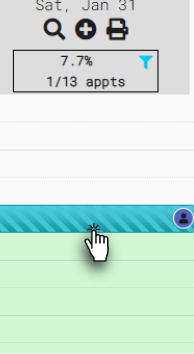
1. Access the appointment
- Locate the appointment you want to edit and double-click on it. The appointment details will automatically appear.
2. Click on Edit
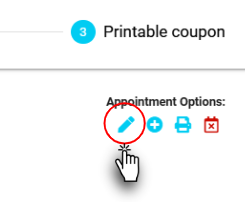
- Once the details are displayed, click the pencil button to enable editing of the information.
3. Edit appointment information
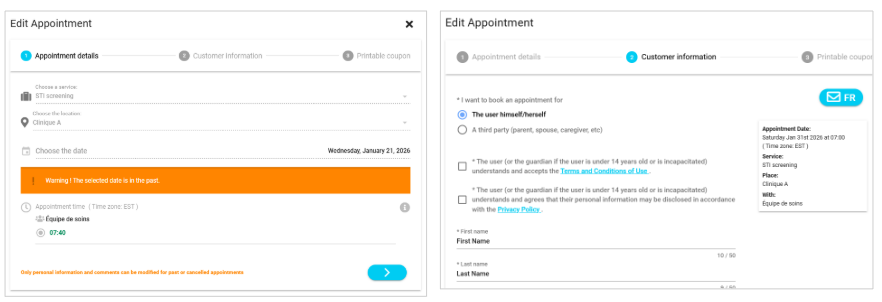
Depending on the status of the appointment, you can update various information:
Appointment passed or cancelled:
The Comments field
User's personal information
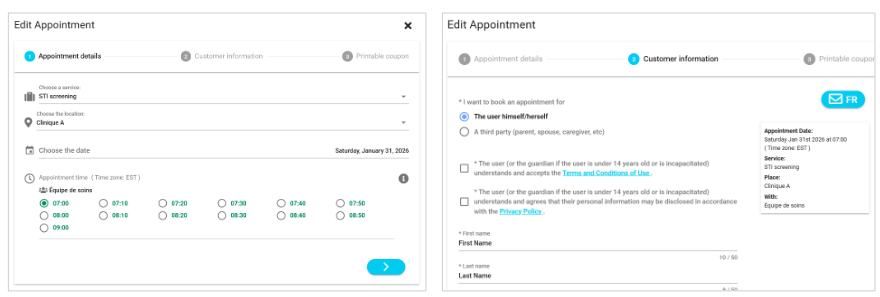
Upcoming appointments:
The service
The location
The date and time of the appointment
- The Comments field
User's personal information
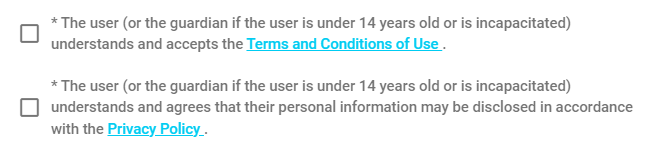
4. User consent (if necessary)
If you modify any of the following fields, the user's consent must be requested again:
I want to book an appointment for (the user himself/herself / a third party)
First Name
Last Name
Date of birth
Health insurance number
5. Save and inform the user
Once the changes have been made and consent updated if necessary:
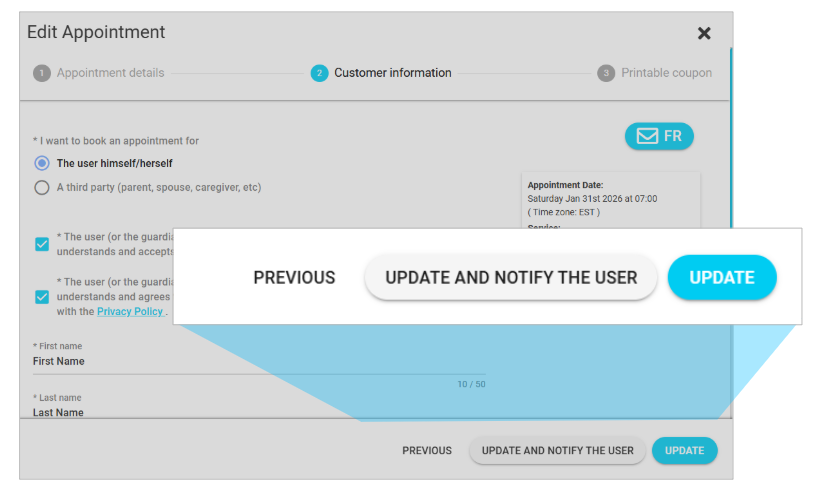
Click on the "Update" button:
This option applies the changes only in your administration portal, without sending a notification to the user.
Click on the "Update and notify user" button:
The user will receive a text message and/or email confirming the update within a few minutes, provided that their contact information (cell phone number and/or email address) is entered in the appointment.
The changes will be applied immediately in the appointment.
| By phone | Solutions home page | Get help and open a ticket |
| 450-977-2672 poste 2 | Solutions Clic Santé | Open a ticket |

Trimoz Technologies - All rights reserved