

The Schedules menu is a planning tool that allows you to define and adjust resource availability and service accessibility. It is used to organize professionals' working hours and to precisely control which appointments are open to the public.
TABLE OF CONTENTS
Where can I find the Schedules menu?
To access your schedules, follow these steps:
1. Log in to your account
- Log in to your account at https://admin3.clicsante.ca/.
2. Schedules Menu
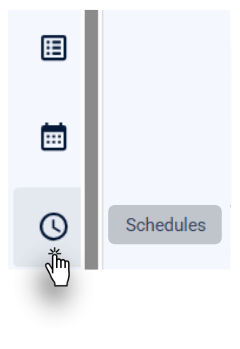
- In the side navigation bar (on the left side of your screen), click the Schedules menu.

Key features
The Schedules menu includes several key features to help you adapt your calendar to the realities of your daily life:
- Creating schedules and time slots: Build detailed schedules and configure specific time slots. You can directly integrate break management and adjust staff availability based on the time of day.
- Accessibility control (lock system): Manage the availability of your appointments with a single click. Using the lock and unlock features, instantly choose whether a time slot is reserved for internal use or open to the public.
- Batch actions to save time: simplify your administrative tasks. No more repeating the same actions: clone entire schedules from one week to the next and apply simultaneous changes (deletions, locking/unlocking) to multiple time slots at once.
Overview
Before diving into setting up your time slots, here are the 9 main elements that make up your screen: 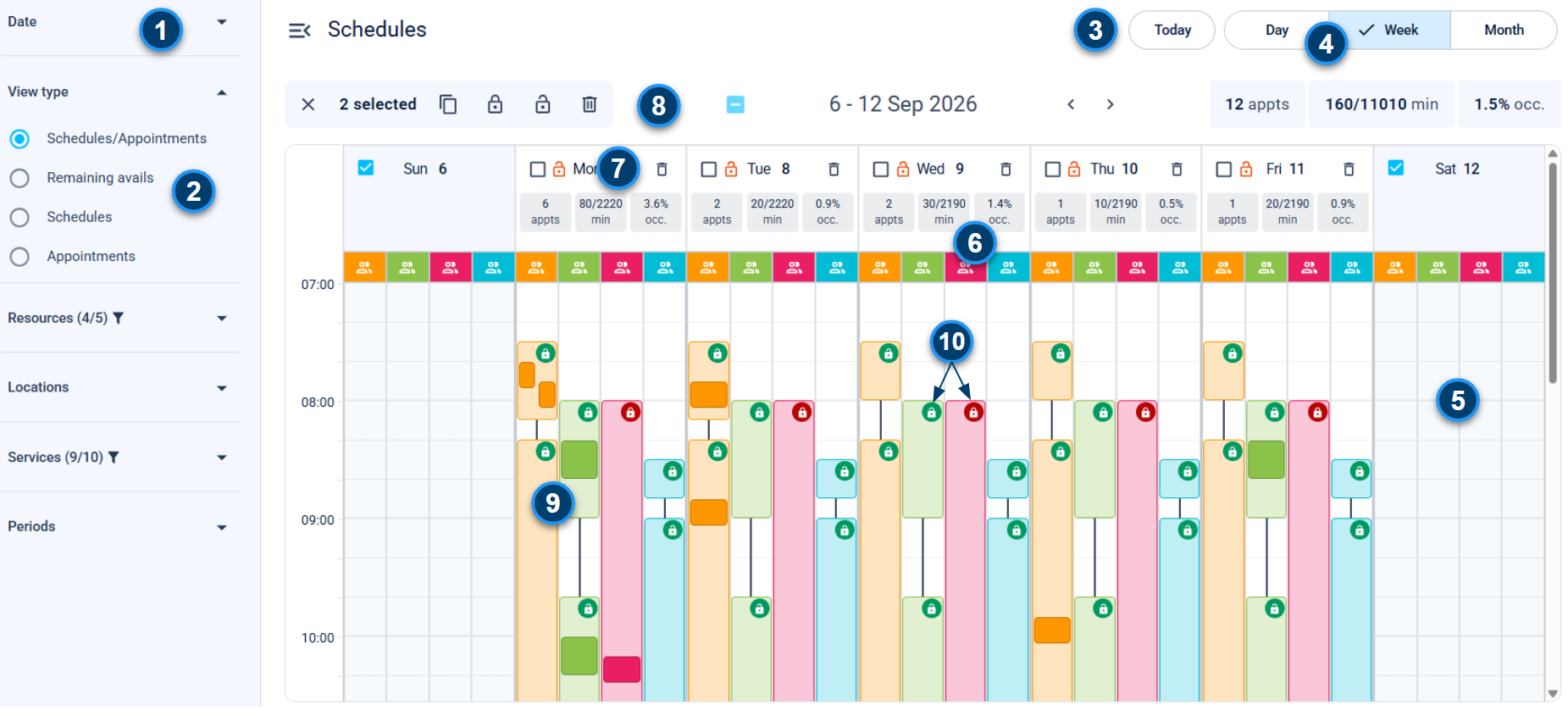
1. Date Picker
- Allows you to easily navigate through time to view past dates or plan your upcoming weeks.
2. Filters
- Refine your view to see only time slots and appointments related to a specific service, location, or resource. You can also customize how your time periods are displayed and choose your view type.
3. “Today” Button
- Instantly return to today’s date with a single click, no matter which time period you were viewing.
4. Views
- Customize your calendar format (daily, weekly, or monthly) to suit your visibility needs.
5. Create a Time Slot
- Instantly open the schedule creation page by clicking on an empty space to add new available time slots to your calendar.
6. Booking Indicator
- Track the status and occupancy rate of your time slots in real time with clear visual indicators.
7. One-Time Action
- Quickly lock, unlock, or delete an entire day without affecting the rest of your calendar.
8. Batch actions
- Select multiple time slots simultaneously to apply the same change in a single step. You can clone, lock, unlock, or delete time slots.
9. Time slots and appointments
- This is where you view all your available time slots and appointments booked by users.
10. Cadenas de plage horaire
- Quickly lock or unlock a segment of your schedule without affecting the rest of your day.
| By phone | Solutions home page | Get help and open a ticket |
| 450-977-2672 poste 2 | Solutions Clic Santé | Open a ticket |

Trimoz Technologies - All rights reserved