

The cloning feature allows you to quickly copy a daily schedule structure (your source day) and duplicate it across several other days (your target days). Thanks to its smart and flexible processing system, it no longer stops at the first obstacle: the feature applies schedules wherever possible and isolates the rest in a report.
TABLE OF CONTENTS
Cloning a Schedule
To clone time slots in bulk, follow these steps:
1. Choose the source day
- In your calendar, locate the perfectly configured day you want to copy. You can choose any source day in your calendar, even those that already contain appointments.
2. Check the target days
- Check all the days on the calendar where this schedule should repeat (e.g., every Monday and Tuesday of the upcoming month).
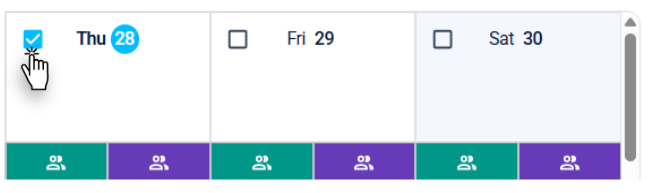
- To make selecting days easier, it is recommended to choose a full week or month in the corresponding view.
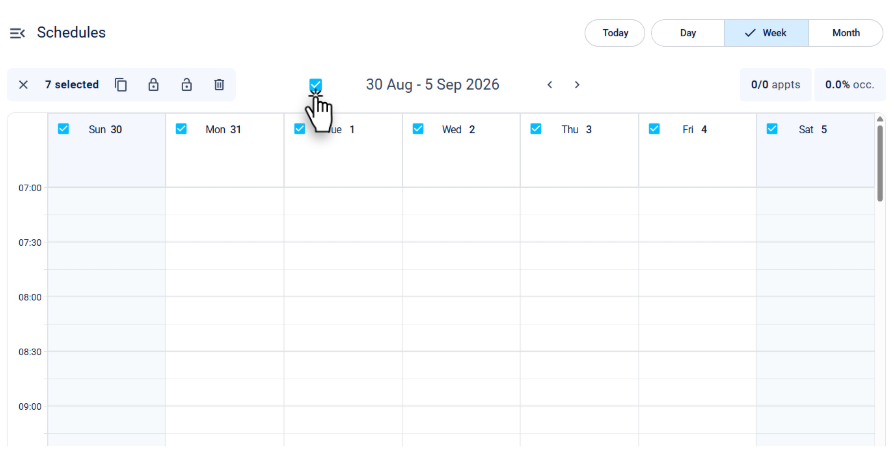
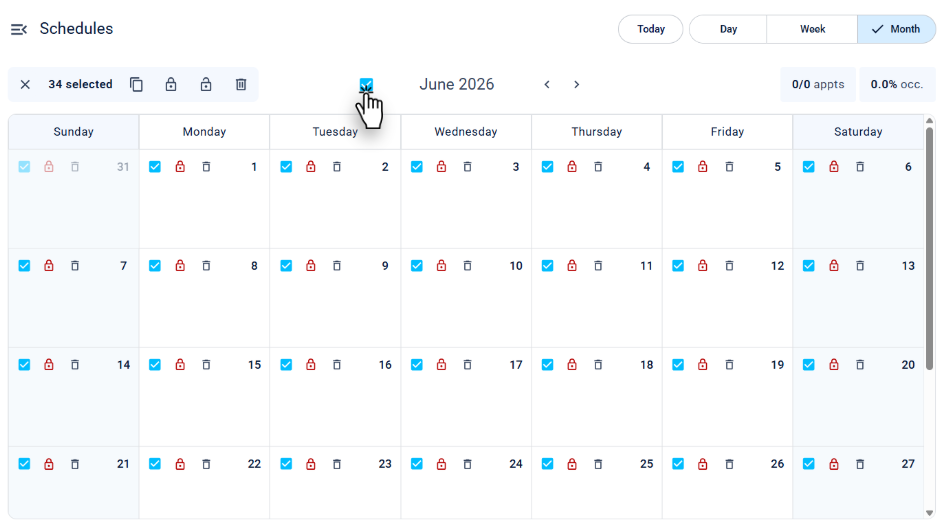
3. Apply the bulk action
Once one or more days are selected, an action bar appears. This bar displays the number of selected days and offers the option to deselect everything with a single click using the X icon.
- Click on the cloning icon.
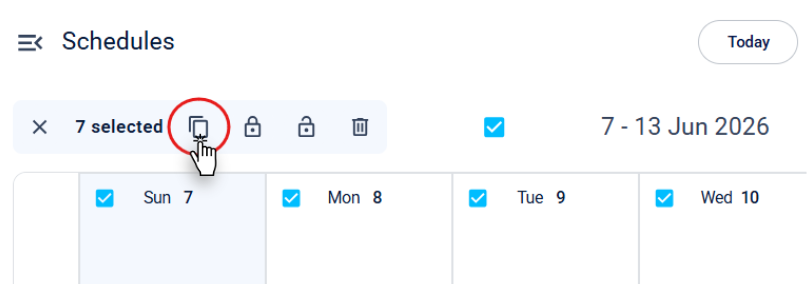
- The window to clone a day will appear. Complete the following fields:
- Date to clone: Select the source date identified in step 1. This is the day you will duplicate across your target days.
- Destination dates: Validate the selection of target days you made. You can deselect a date by clicking the X icon to its right.
- Resources to clone: Select the resource(s) to clone. They will all be checked by default.
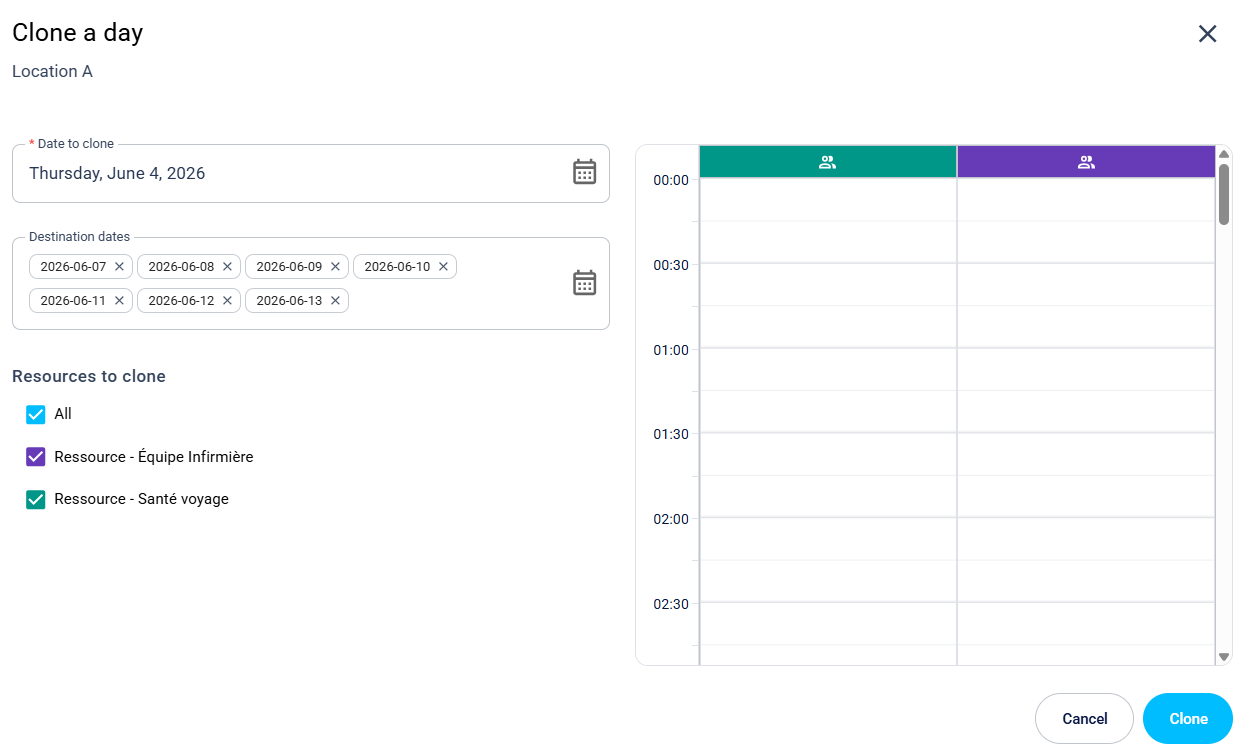
4. Start the cloning process
- Once your fields are filled in, the time slots to be cloned will be visible in the right column for reference. You can adjust the time slots in your schedule as needed.
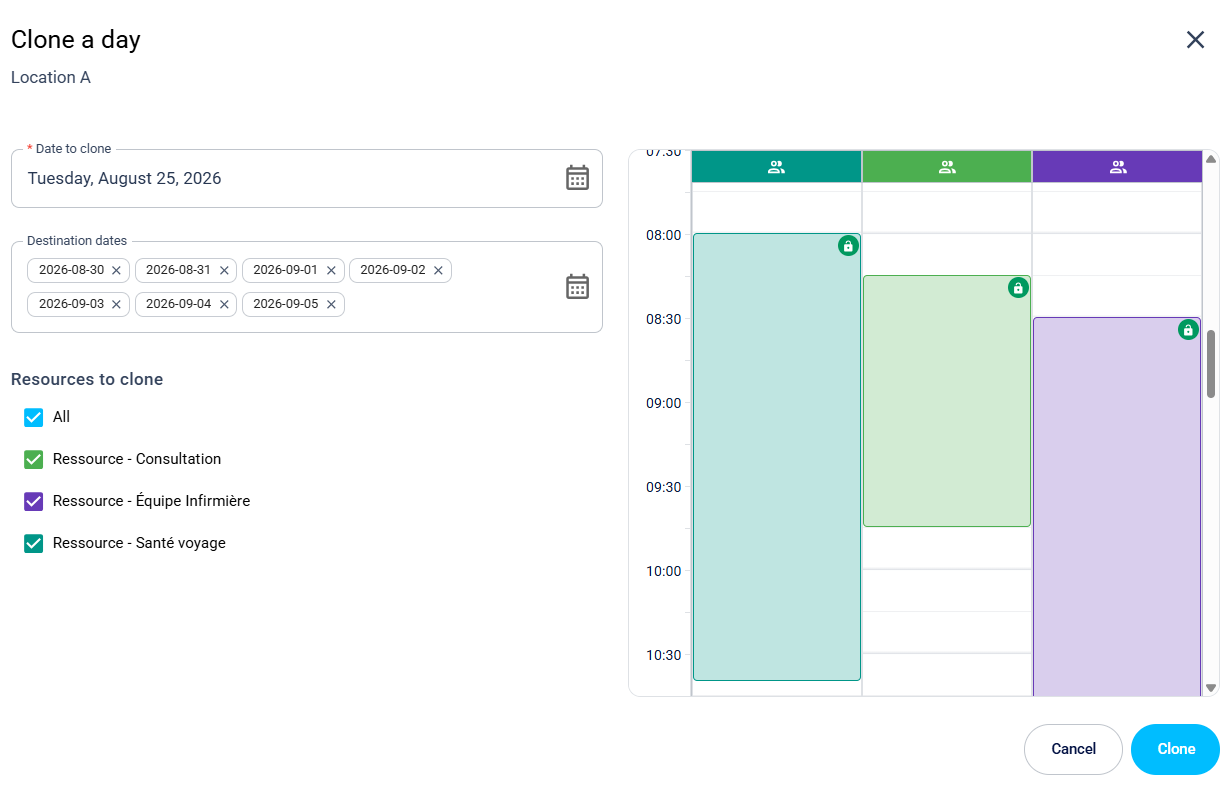
- Click Clone. The system will analyze your target days one by one in the background and deploy your source schedule there if no duplicates are found.
5. Exceptions report
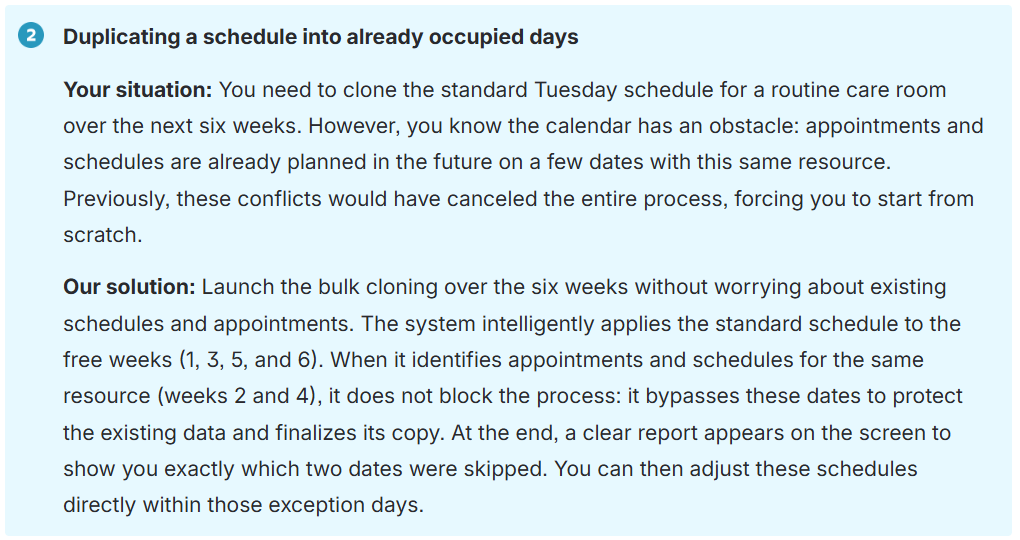
If the system encounters a conflict on one of the chosen days, it does not cause your entire copy to fail. It injects the schedule into all free days and simply "skips" the problematic day. There are only two specific situations where cloning will not run:
The target day already has an appointment for this resource.
The target day already has a schedule for this resource.
A message will appear on the screen listing the exact dates that were skipped. This way, you know exactly what was done and what was protected.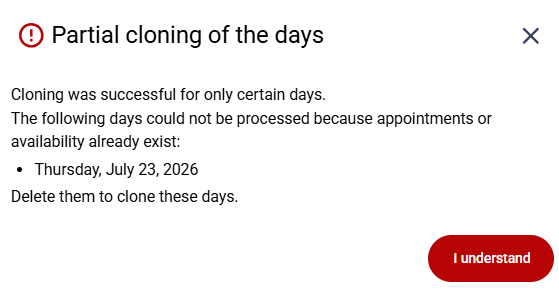
Practical Cases: Using Cloning in Your Daily Routine
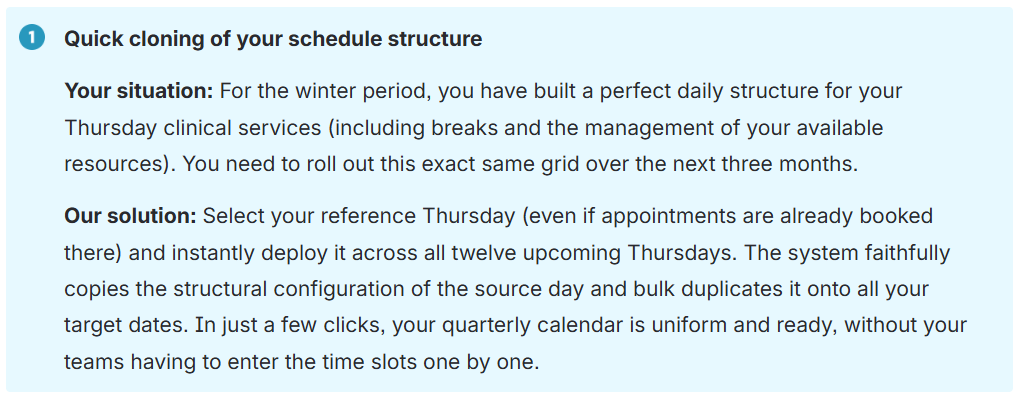
Here is how to use the cloning tool to optimize your daily workflow:
| By phone | Solutions home page | Get help and open a ticket |
| 450-977-2672 poste 2 | Solutions Clic Santé | Open a ticket |

Trimoz Technologies - All rights reserved