

These practical steps will guide you through the initial creation and modification of your time slots. Learn how to effectively link your participants to their activities and adjust their calendars in real time according to your staff's movements.
TABLE OF CONTENTS
Creating a time slot
By following these steps, you will be able to precisely structure a workday by associating a resource and services with it.
1. Drag and drop to begin creation
- Select the location for which you want to create a new time slot.
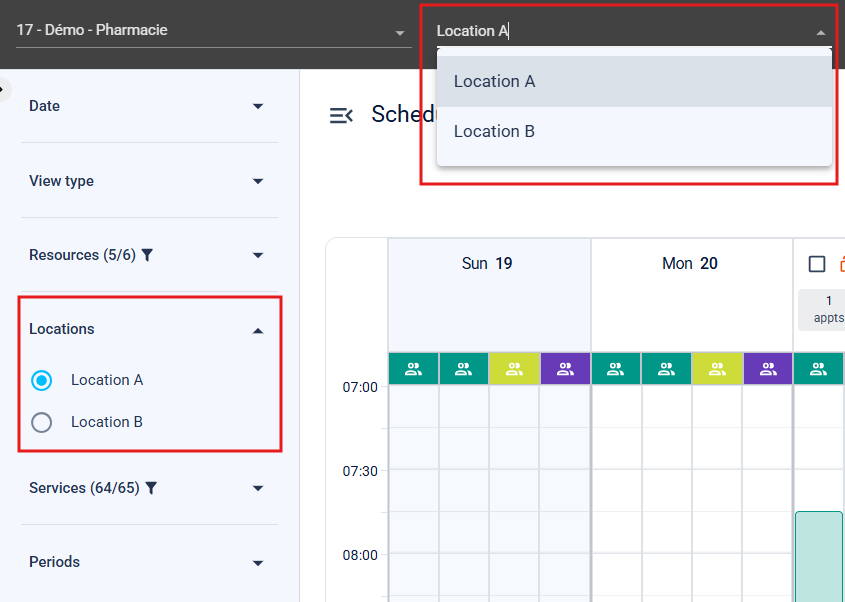
- Switch to your preferred view: Week or Day.

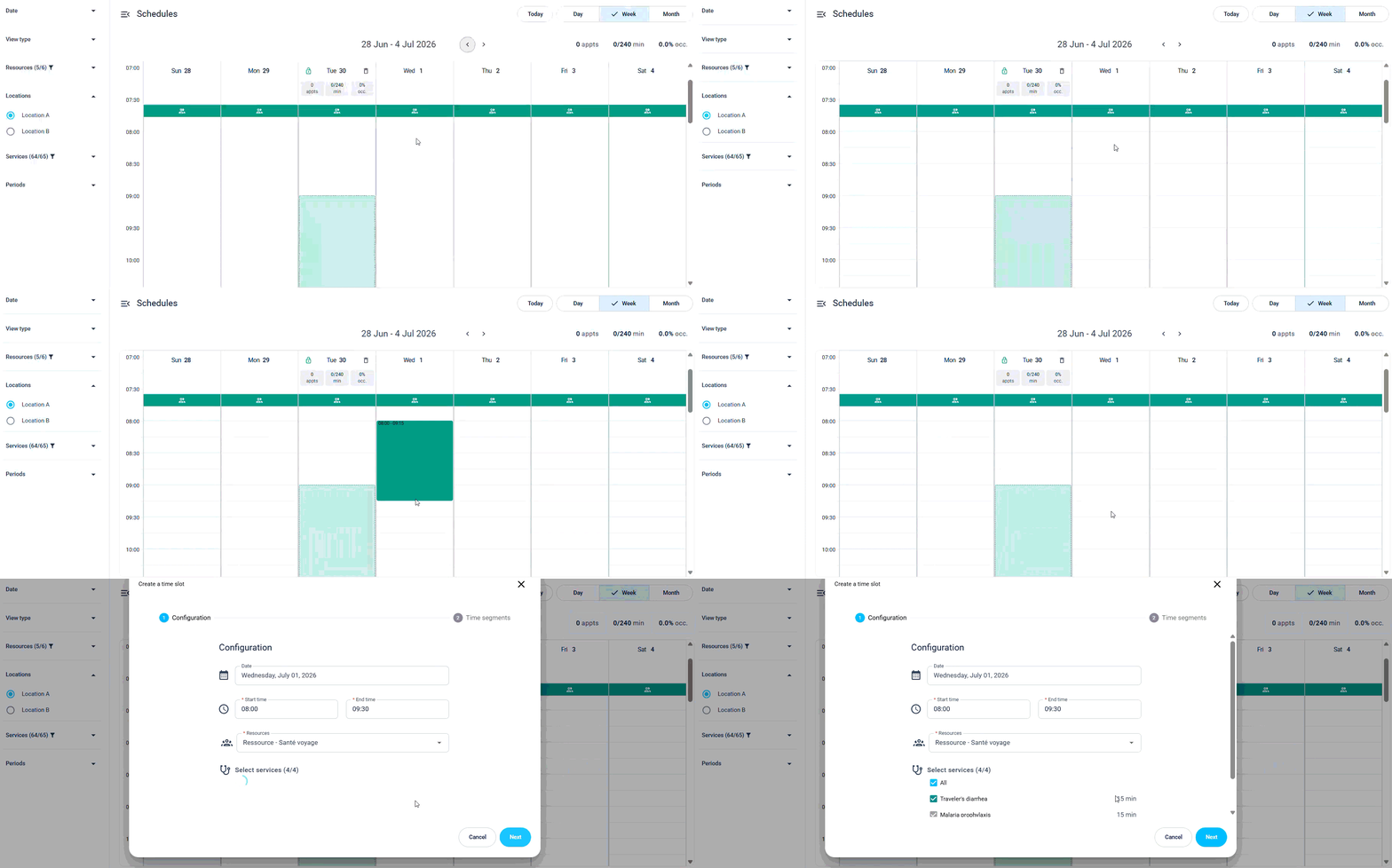
- Position your cursor over the desired day. Click on the start time and, while holding down the mouse button, drag to the end time. The configuration modal will appear instantly. You can readjust the precise times using the keyboard if needed.
2. Allocate the resource
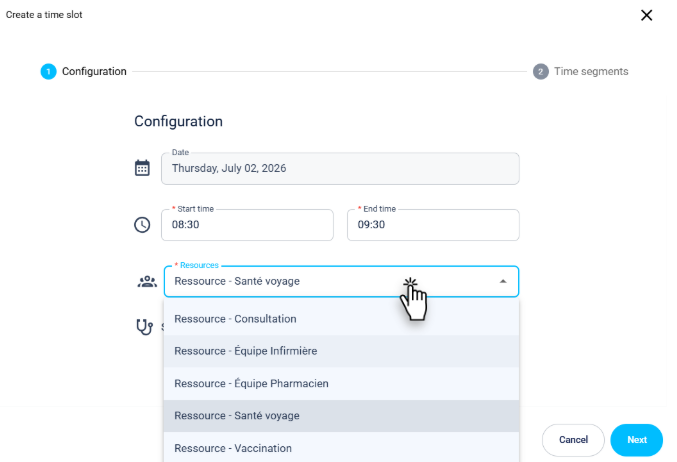
- Open the resource dropdown menu and manually select the relevant resource.
3. Select the services
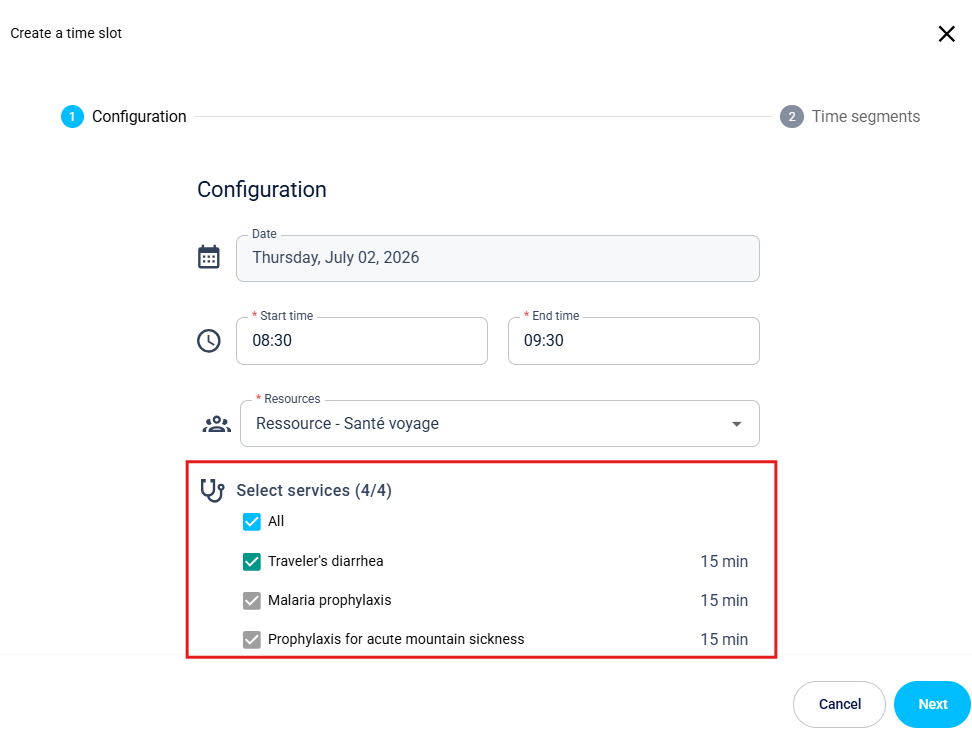
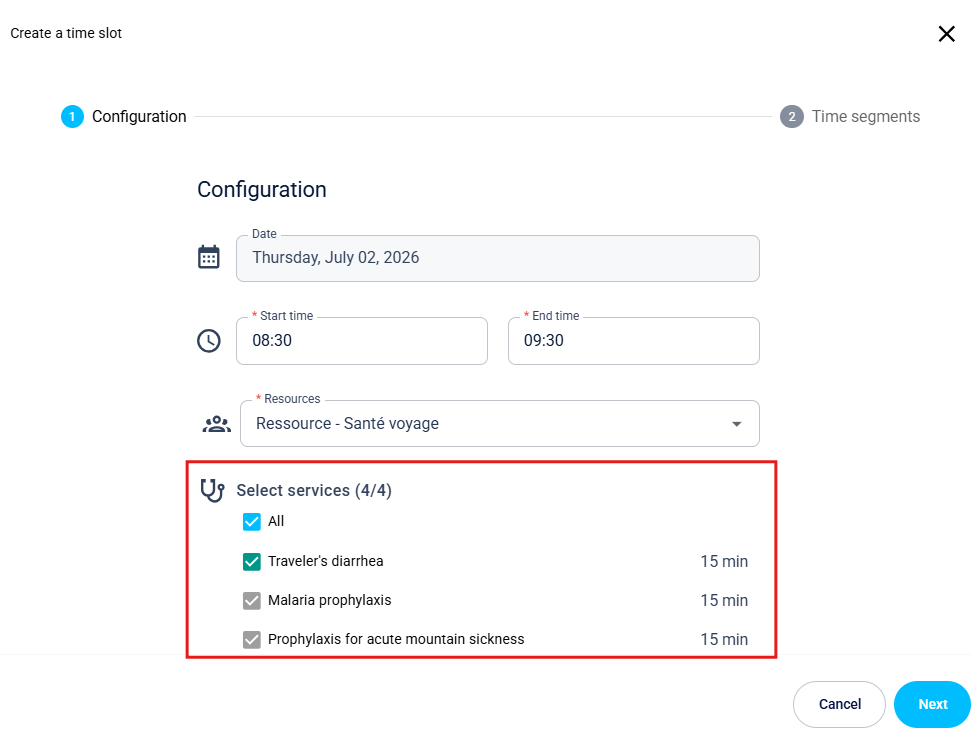
- Check one, several or all of the services that this resource is authorized to offer during this time slot (e.g. Flu vaccination, Blood test).
4. Proceed to the next step
Click the Next button to lock this first step and switch to the optional Break, Resources and Time Segments configuration.
It is possible to skip the step of creating slots or availability distribution by successively clicking on Next until the Create time slot button appears.
Modify a time slot
In case of absence, rotation, or team reorganization, the system allows you to modify the resource, services, or hours linked to a time block.
Modify the duration of a time slot
Follow these guidelines when you need to change the start or end times of the time block.
1. Open the time slot
- Option A (double-clicking): Double-click directly on the time slot you wish to remove to open its editing window.
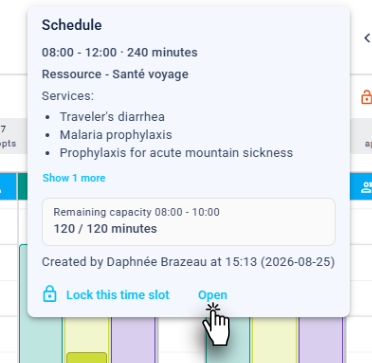
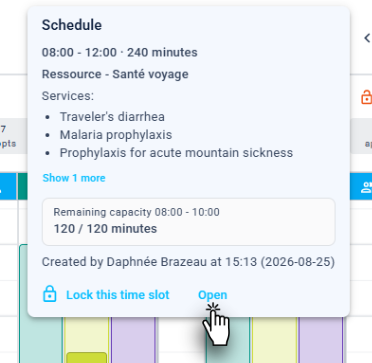
- Option B (hovering): Hover your mouse cursor over the time range and click the "Open" button that appears. The editing window will appear.
2. Enter the new hours
Enter the new time in the Start Time or End Time field to modify the entire block's range (e.g., change a block from 8am to 11am to a block from 9am to 5pm).


Modify the associated resource
Follow these guidelines when you need to change the resource assigned to a schedule.
1. Open the time slot
- Option A (double-clicking): Double-click directly on the time slot you wish to remove to open its editing window.
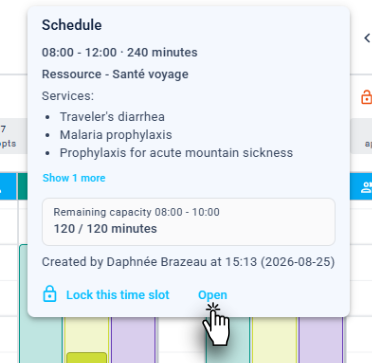
- Option B (hovering): Hover your mouse cursor over the time range and click the "Open" button that appears. The editing window will appear.
2. Choose the new resource
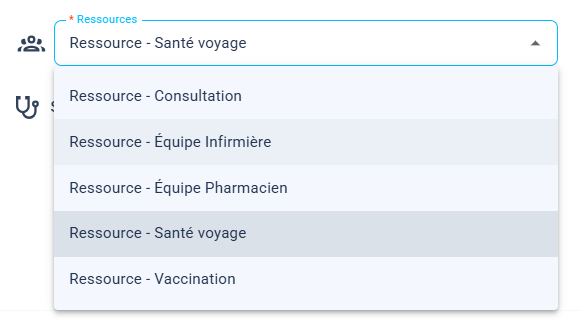
- Open the resource dropdown menu and manually select the desired new resource.
3. Update the services
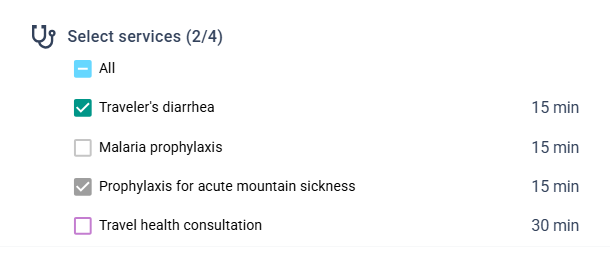
- The list of services adjusts automatically with the associations of the new resource. Check the services it must offer during this time period.

Modify the service offering
Suivez ces directives lorsque vous devez modifier votre offre de service dans un bloc horaire précis.
1. Open the time slot
- Option A (double-clicking): Double-click directly on the time slot you wish to remove to open its editing window.
- Option B (hovering): Hover your mouse cursor over the time range and click the "Open" button that appears. The editing window will appear.
2. Select the services
- Modify your selection by checking or unchecking one or more services (e.g., Flu vaccination, Blood test).

Quick Action: Drag and Drop a Time Slot
Save time when restructuring your calendars by reorganizing your grids directly with your mouse. The drag-and-drop feature allows you to adjust a block's schedule or duplicate a day in seconds.
1. Grab the time block
- Position your cursor over the time slot you want to modify, then click and hold the mouse button.
2. Drag to the new destination
- Move the block to an earlier or later time on the same day, or drag it to a completely different date on the calendar.
3. Choose the action (Move or Copy)
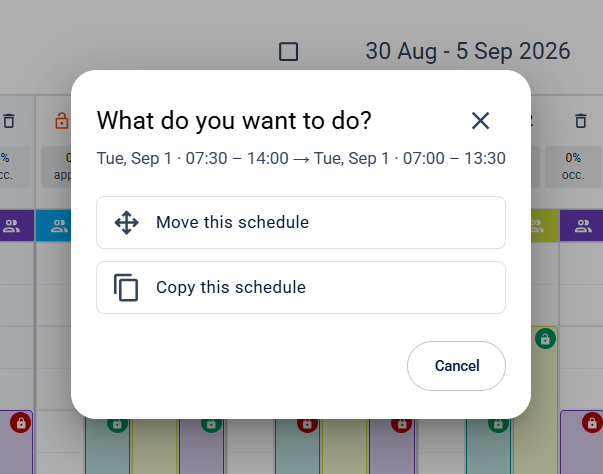
When you release the mouse button, the system prompts you to confirm the operation:
- Move this schedule: Transfers the complete time block to its new location and deletes the original one.
- Copy this schedule: Duplicates the exact structure of the time slot in the new location while keeping the original block intact.

Related article(s)
Break, Resources and Time Segments
 Trimoz Technologies - All rights reserved |