

The Edit an appointment feature lets your establishment easily update the information of a scheduled or past appointment. It helps you correct inaccurate information, adjust scheduling, or fill in missing details so you can keep accurate and reliable appointment records.
This action is available from the Follow-up menu and the Appointments menu. This article describes the steps from the Follow-up menu.
Edit an appointment
To edit a user’s appointment, go to the Appointments menu in the administration interface, then follow the steps below.
1. Access the appointment
- Locate the appointment you want to edit and click on the eye icon in the Actions column. The appointment details will automatically appear.

2. Click Edit
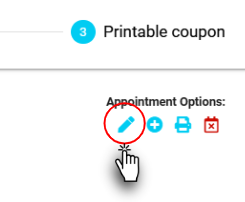
Once the details are displayed, click the pencil button to enable editing.
3. Edit the client information
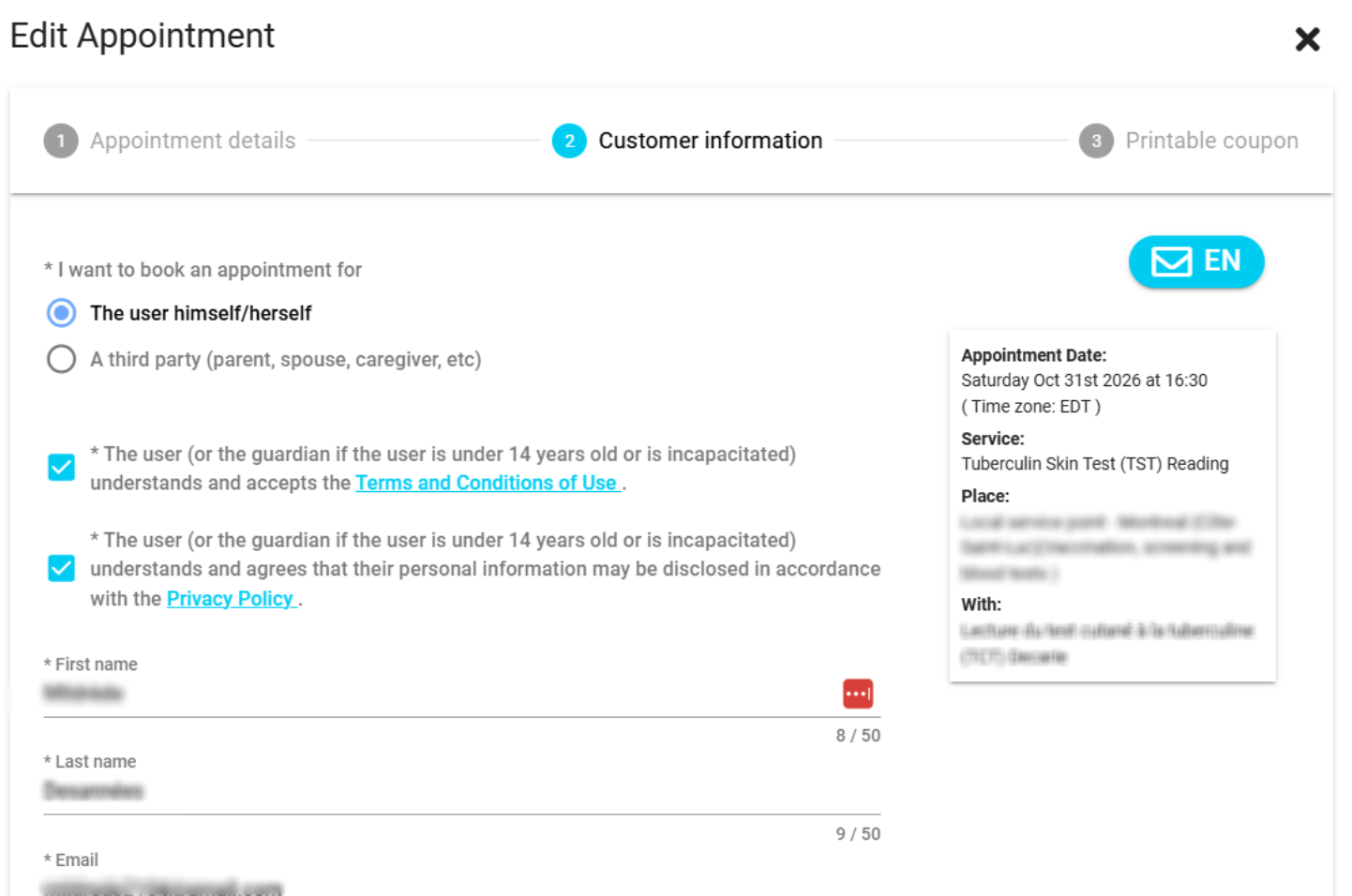
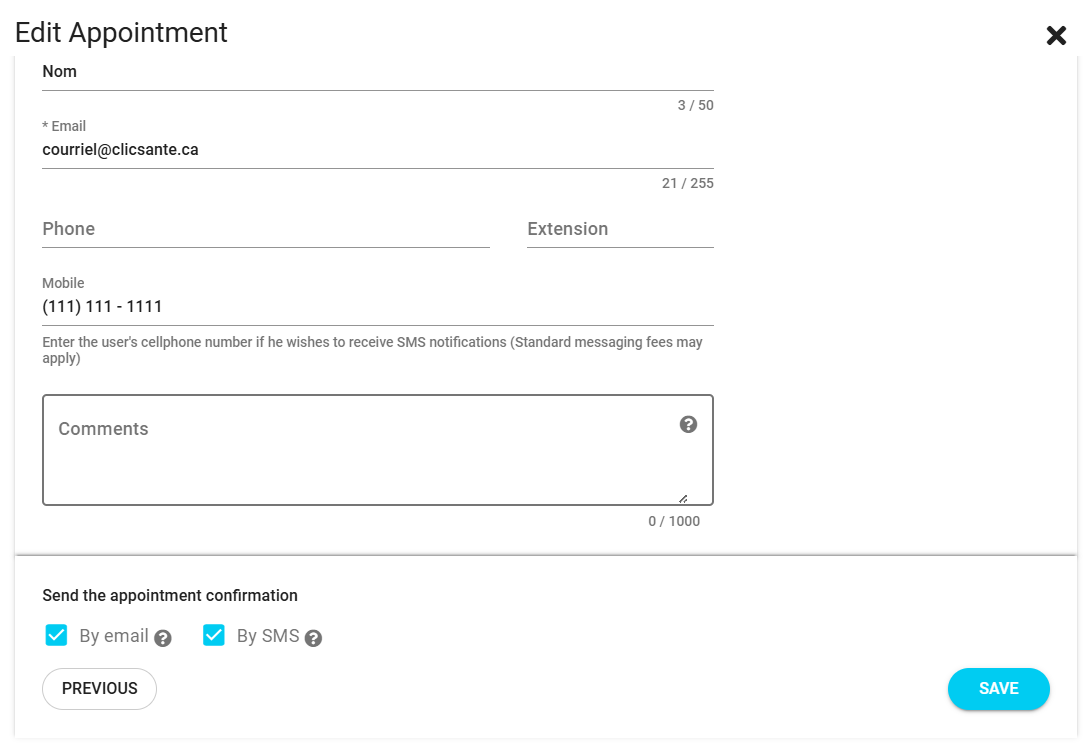
The edit window opens directly on the Customer information step. You can correct the user’s personal information there.
4. Edit the appointment details (if needed)
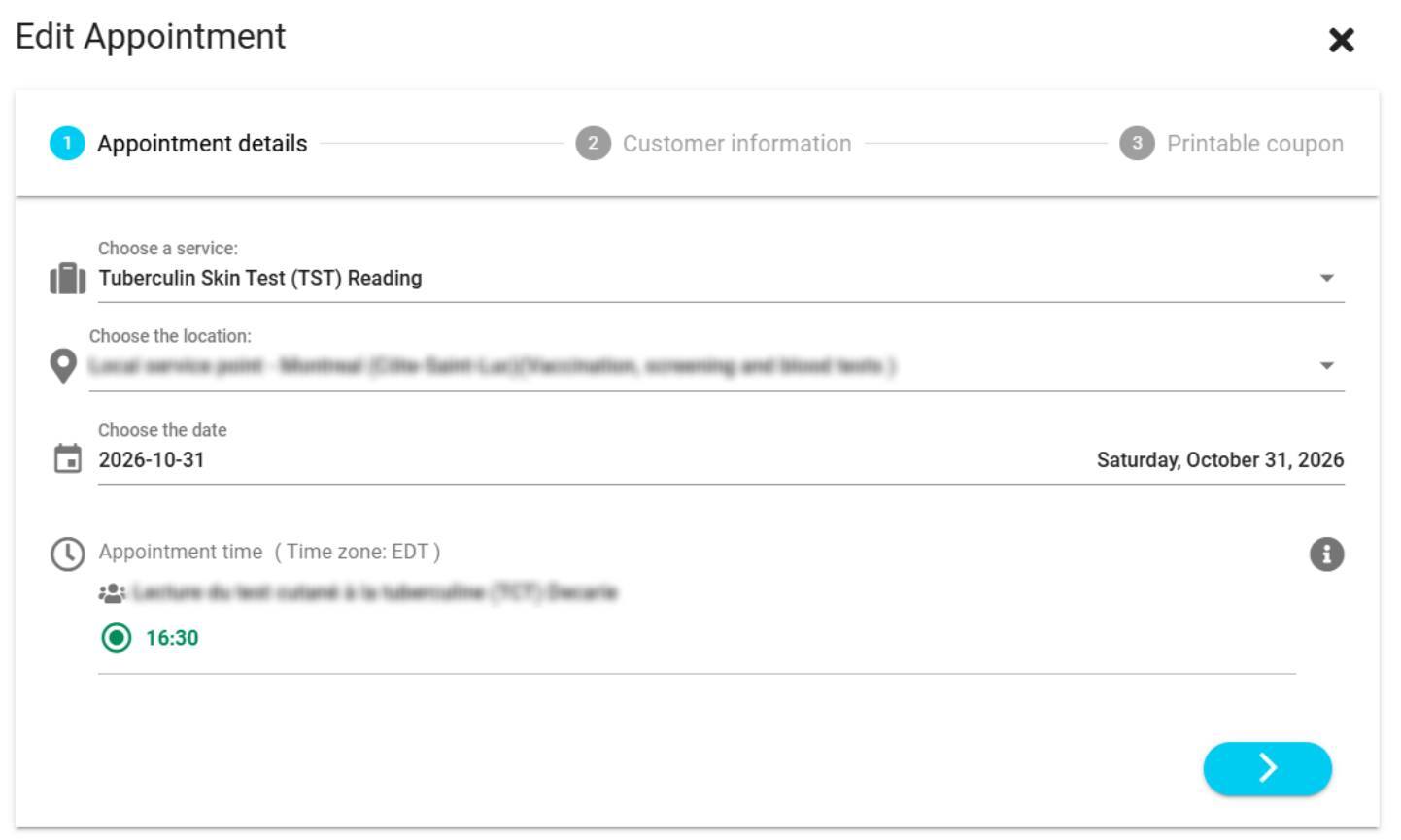
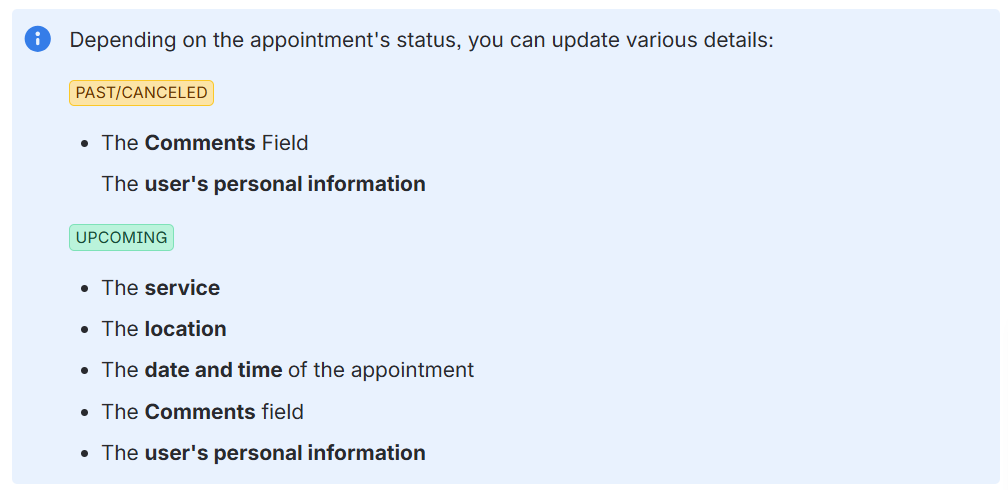
To change the service, location, date, or time, click Previous at the bottom of the form. This takes you to the Appointment details step. Once your changes are made, click Next to return to the Customer information step and save.
5. User consent (if required)
- When you edit an appointment, the consent boxes are checked by default. They are automatically unchecked if you change any of the following fields:
- I want to book an appointment for (the user himself/herself / a third party)
- First Name
- Last Name
- Date of birth
- Health insurance number
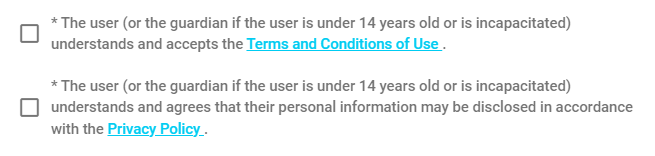
- A warning message is then displayed. You must obtain the user’s consent again, then check the boxes.
6. Save and notify the user by email or SMS
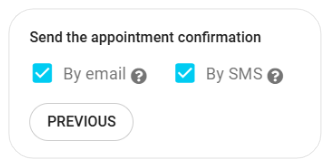
The Send by email and Send by SMS boxes are located at the bottom of the Customer information step. When you edit the user’s information, they are unchecked by default.
- If you change the date, time, service, or location of an upcoming appointment, a box is checked automatically:
Registered information | Courriel | SMS |
|---|---|---|
Email only | Checked | Not available |
Cell phone only | Not available | Checked |
Email and Cell Phone | Checked | Unchecked (check as needed) |
- If you add or change a valid email address or cell phone number for an upcoming appointment, the corresponding box is checked automatically.
- Select the boxes to send an email and/or an SMS if desired. Click Save. The changes are applied to the appointment immediately. The Save button stays greyed out until all required fields are filled in.
| By phone | Solutions home page | Get help and open a ticket |
| 450-977-2672 poste 2 | Solutions Clic Santé | Open a ticket |

Trimoz Technologies - All rights reserved