

The non-eligible user management feature allows your organization to efficiently handle situations where a user does not meet the criteria required for a service while ensuring consistent management of associated appointments.
It offers the ability to:
- Mark a user as non-eligible.
- Cancel the appointment if necessary.
- Manage the release of time slots and notifications to the user.
- Ensure automatic updating of the Follow-up menu, history, and appointment reports.
These actions are centralized in the Follow-up menu interface to simplify operations and reduce manual handling.
Management of not eligible users
To manage a user’s ineligibility, go to the Follow-up menu in the admin interface, then follow the steps below.
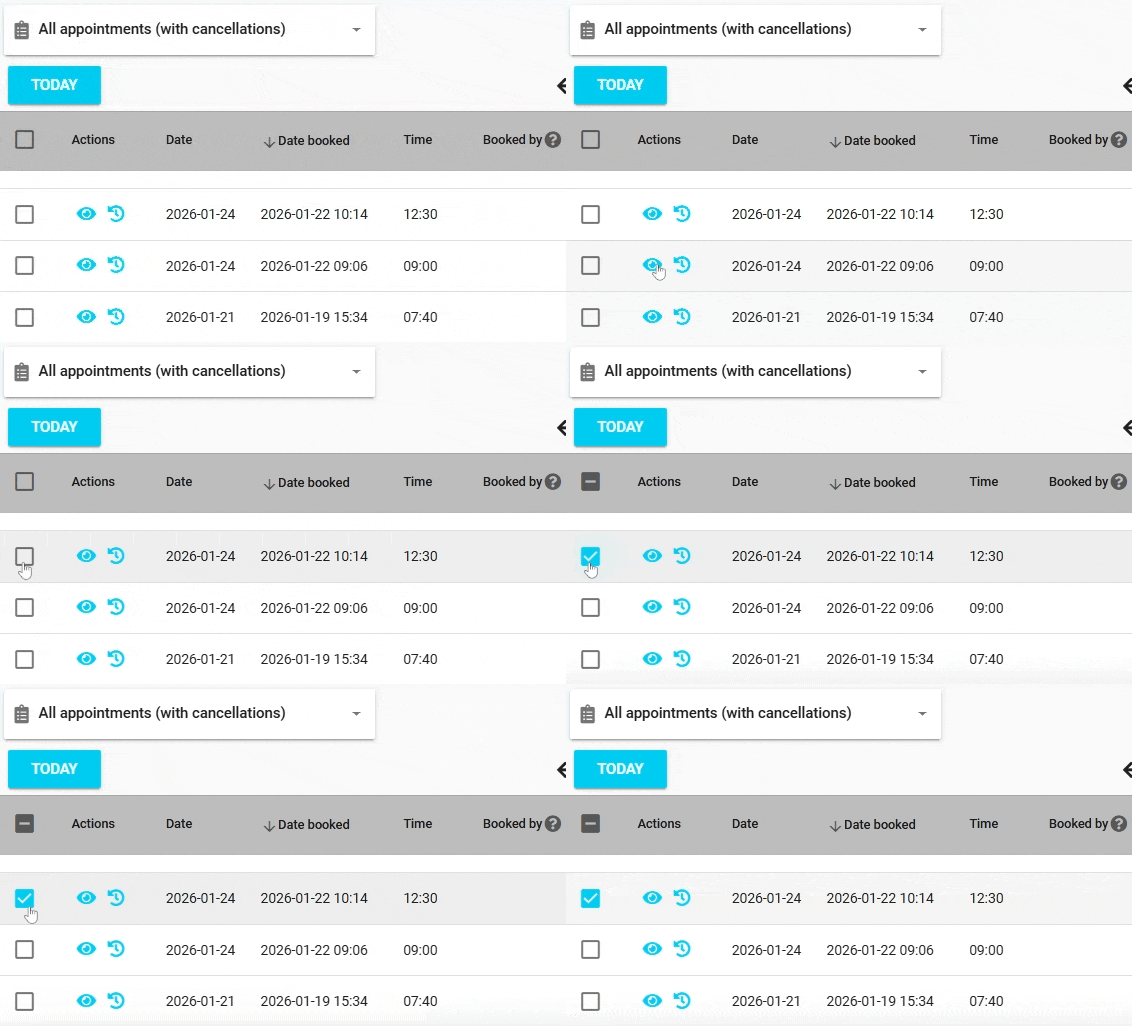
1. Access the appointment
- In the Follow-up menu, locate the relevant appointment and select it to display the available actions for the associated user(s).
2. Mark the user as not eligible
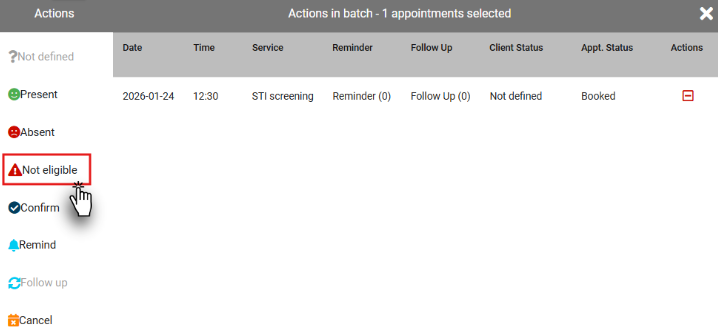
- A batch action window will appear. Select the Not Eligible option for the relevant appointment. If the appointment is upcoming, a window will automatically open to allow you to choose the action to apply to the appointment.
3. Choose the action to apply to the appointment
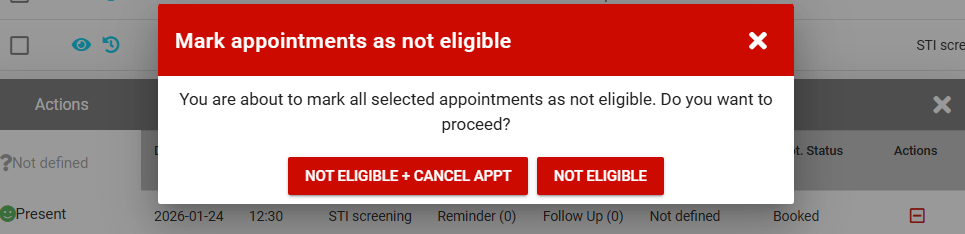
When the user is marked as not eligible, you can choose from the following options:- Not Eligible: the appointment is kept, and the user status changes to Not Eligible.
- Not Eligible + cancel appt: the appointment is canceled. Proceed to step 4 to configure the cancellation settings.
4. Configure the appointment cancellation
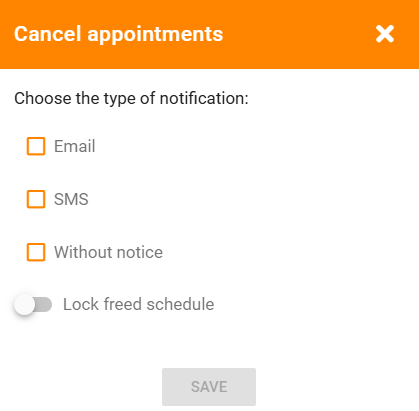
If you choose to cancel the appointment, the existing options will be offered:- Send a notification to the user to inform them that the appointment has been canceled. The notification can be sent via SMS or email if the appointment is upcoming and a mobile number or email address is provided. The Without notice option is also available.
- Lock the freed schedule using the button so that the slot previously occupied by the appointment is marked with a red lock and is no longer available to the public. If you do not activate it, the time slot will automatically become available to users on the public portal.
5. Automatic appointment update
Once the user is marked as not eligible, the User Status column is updated according to the previously selected actions:
- Not Eligible: if the appointment remains scheduled (not canceled).
- Canceled: if the appointment has been canceled.
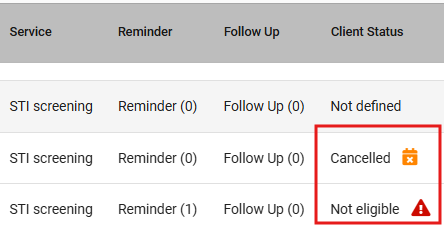
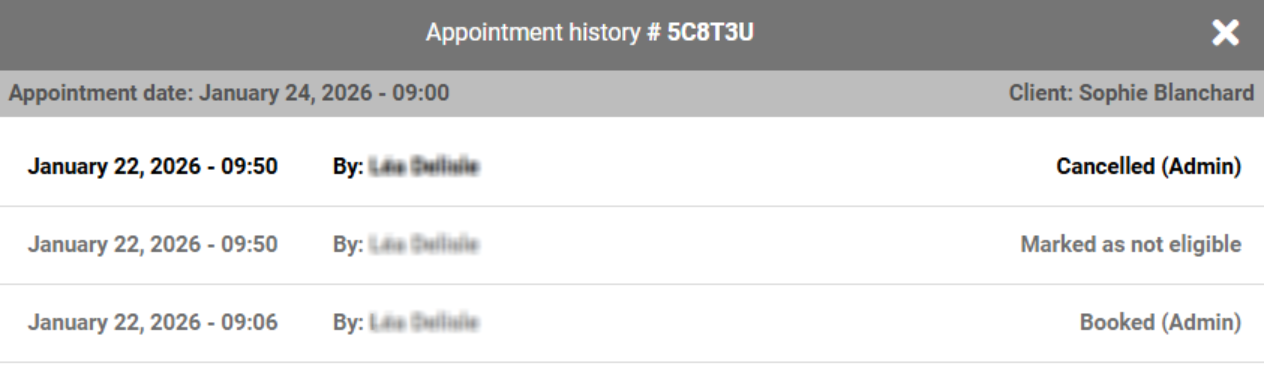
- The not eligible action is recorded in the appointment history. If the appointment is canceled, the cancellation is also recorded.
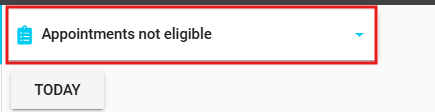
- If the appointment is ineligible but still scheduled (if the appointment is not canceled), it will appear in the Appointments not eligible report.
- If the appointment is both ineligible and canceled, it will appear in the following reports:
- All appointments (with cancellations)
- Cancelled appointments
- Appointments not eligible
| By phone | Solutions home page | Get help and open a ticket |
| 450-977-2672 poste 2 | Solutions Clic Santé | Open a ticket |

Trimoz Technologies - All rights reserved